
Share a route with your riding group, ready for no signal
Pass a route to another rider by AirDrop, with its stops, road surface, places to stay and offline map. No internet needed, on either phone.
Four of you meet at the station for a weekend in the hills. One of you planned it, checked the water stops and downloaded the map. The others have nothing yet, and the station has no signal. Sending a GPX by chat would only get them the line, if it got through at all.
With Share with a rider, the route goes from your iPhone to theirs by AirDrop, with everything you’ve prepared: stops along the way, road surface, places to stay, your points and the offline map. AirDrop goes straight from phone to phone, so neither of you needs signal, and the route arrives ready to ride offline. Each rider then puts it on their own bike computer.
It’s free.
On your phone: share it
- Open the route and tap the share button at the top right.
- Choose Share with a rider (AirDrop)….
- Under Send with it, choose what goes along, each with its own switch: Stops, Road surface, Places to stay, Ride plan, Your points and the Offline map. The map is the big part, so AirDrop takes a little longer with it.
- Tap Share and pick the other rider’s iPhone in AirDrop.
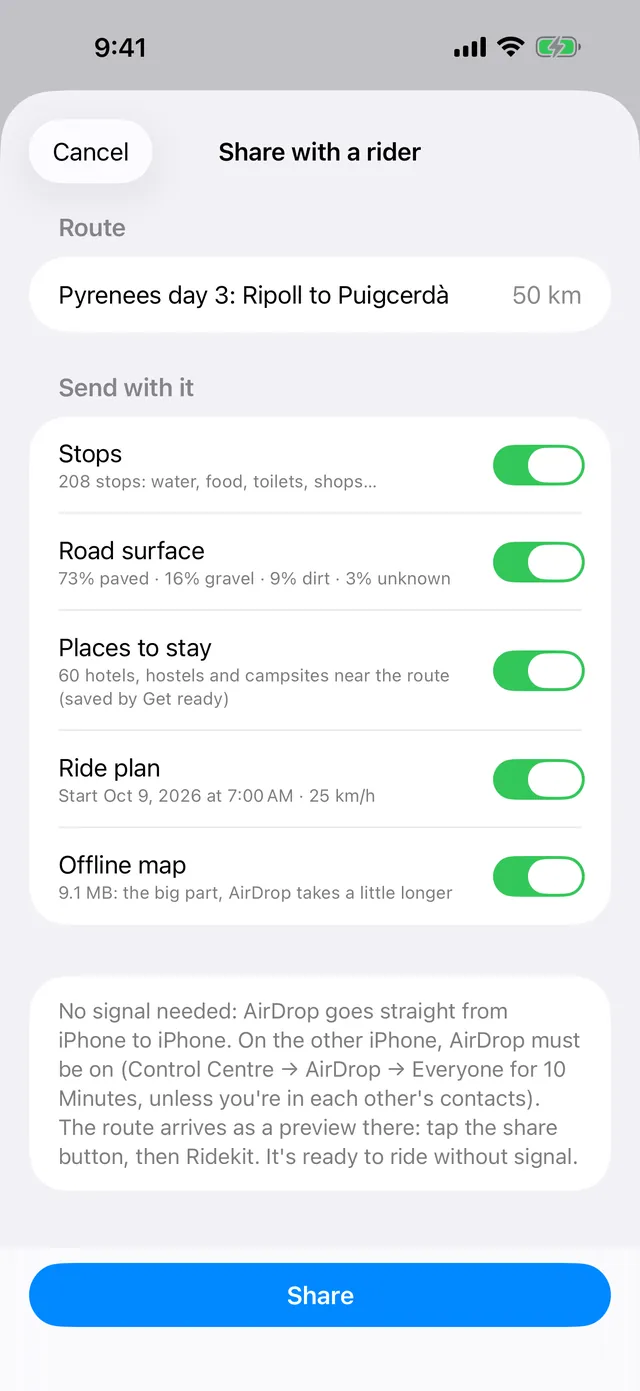
For a whole trip, open the collection instead and choose Share with a rider (AirDrop)… from its ⋯ menu: the whole collection goes in one share.
If something isn’t on your phone yet (say, you never tapped Get ready on this route), the sheet tells you. The other rider’s Ridekit gets those parts itself once they have signal.
On their phone: add it to Ridekit
AirDrop must be on: Control Centre → AirDrop → Everyone for 10 Minutes, unless you’re in each other’s contacts.
Since iOS 17, AirDrop never puts a file straight into an app: it opens a preview first. That’s expected. The preview shows the route’s shape, distance and climbing, what comes with it, and how to add it:
- Tap the Share button on the preview.
- Choose Ridekit.
- Tap Open in Ridekit.
Ridekit adds the route and shows what came with it under Ready to ride without signal: stops along the way, road surface, places to stay, your points and the offline map, each ticked if it arrived. From there it’s a route like any other: open it and tap Send to bike computer. It goes over Bluetooth to a Garmin Edge with no internet, or Export for your bike computer… makes a FIT course or GPX with stops for a Wahoo, Hammerhead, Bryton or another.
If they saved the file to Files instead, + → Import route files… opens it too. And in the library, + → From another rider (AirDrop)… shows these steps on their phone.
What comes along, and what doesn’t
- Your points go with the route: controls, dangers, a meeting place. Points you marked as private stay on your phone.
- Notes on your points can go too. Riders without Pro or Plus see them blurred.
- The ride plan (start time and pace) goes if you switch it on, so they start from the times and pace you planned.
- The offline map arrives on the free plan on the same terms as their own maps: for routes up to 170 km. For a longer route without Pro or Plus, the map isn’t added, but the route, its stops and the rest are.
Riders without Ridekit
Not everyone in the group has Ridekit, or an iPhone. For them, use the route’s share button and choose GPX with stops or FIT course: a plain file their bike computer or app can open. They get the route and the stops as waypoints, but not the offline map or the rest.
Good to know
- No signal needed on either side. AirDrop works phone to phone, and so does sending to a Garmin Edge over Bluetooth. Handy at a station, a campsite or the start line of an event. See send a route to your Garmin Edge with no internet.
- Changing plans together. If the group decides on a different route at a café, the rider who has it can share it right there, and everyone puts it on their own bike computer. More in change your route mid-ride.
- Each rider has their own copy. Changes one of you makes later, like new stops, don’t reach the others: share the route again.
- AirDrop not showing the other phone? On their iPhone, set AirDrop to Everyone for 10 Minutes and keep the phones close together.
More on routes and files on the support page.