Send a route to your Garmin Edge with no internet
Ridekit sends courses from your iPhone to your Edge over Bluetooth: no cable, no computer, no signal needed. Here's how, and what to do if Garmin Connect gets in the way.
You’re in a hotel lobby in the Pyrenees, the Wi-Fi is down and roaming is off. Tomorrow’s route is on your phone, not on your Edge. Or you’re at a café halfway round, and the course you want is a different one. In both cases you have no internet, and you don’t need any.
Ridekit talks to your Edge directly over Bluetooth, phone to bike computer. Nothing goes through a server or a cloud account, so it works the same at home, abroad without roaming, in airplane mode with Bluetooth on, and in the middle of a ride.
Before the first send
Check these once:
- Your Edge is paired with your iPhone through Garmin Connect, as for any Garmin phone feature.
- The Edge is on, Bluetooth is on, and the phone is close by.
- Garmin Connect and Connect IQ are closed (more on why below).
Ridekit sends to the Edge 540, 840, 1040, 550, 850 and 1050 (tested on the Edge 1050). Older Edges (530, 830, 1030 and earlier) aren’t tested yet: sending may well work, so give it a try.
Send a route
- Open the route in your library.
- Under Tools, tap Send to bike computer.
- The page shows the route on a map as it will go, the Detail level, and the Points on the Edge: what will show under Up Ahead.
- Tap Send at the bottom. The button tells you the size and roughly how long it takes.
- Keep Ridekit open until it says the course is on the Edge.
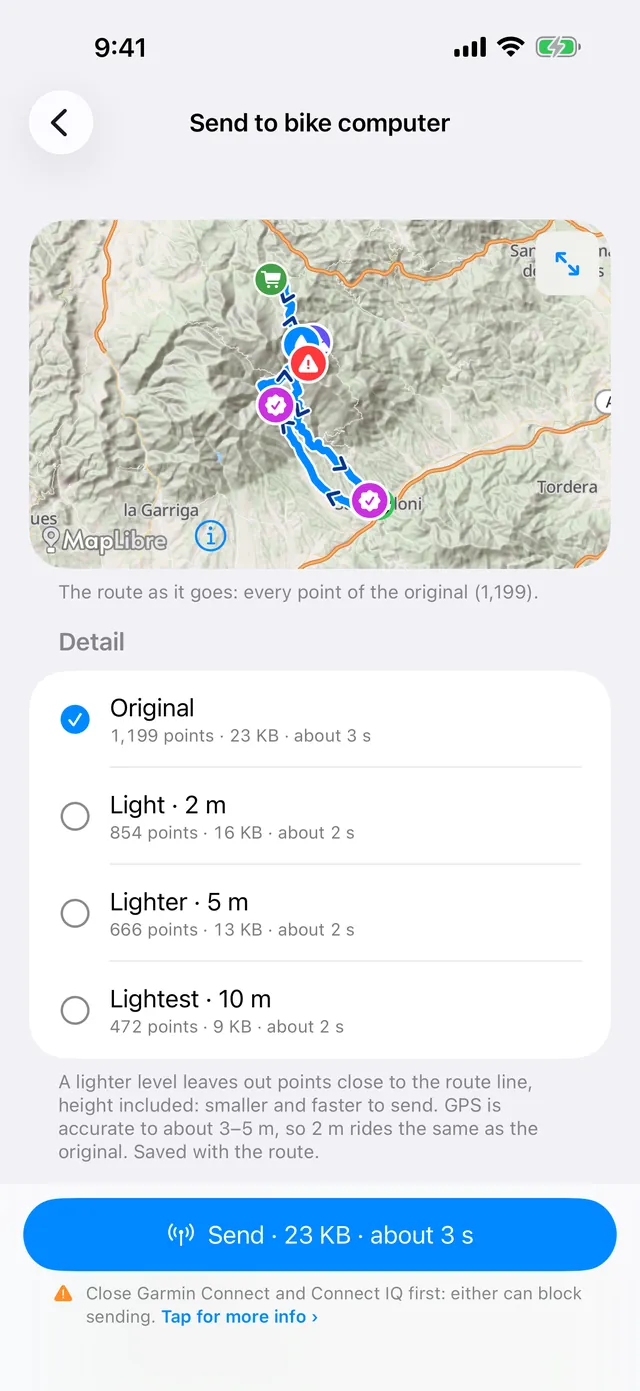
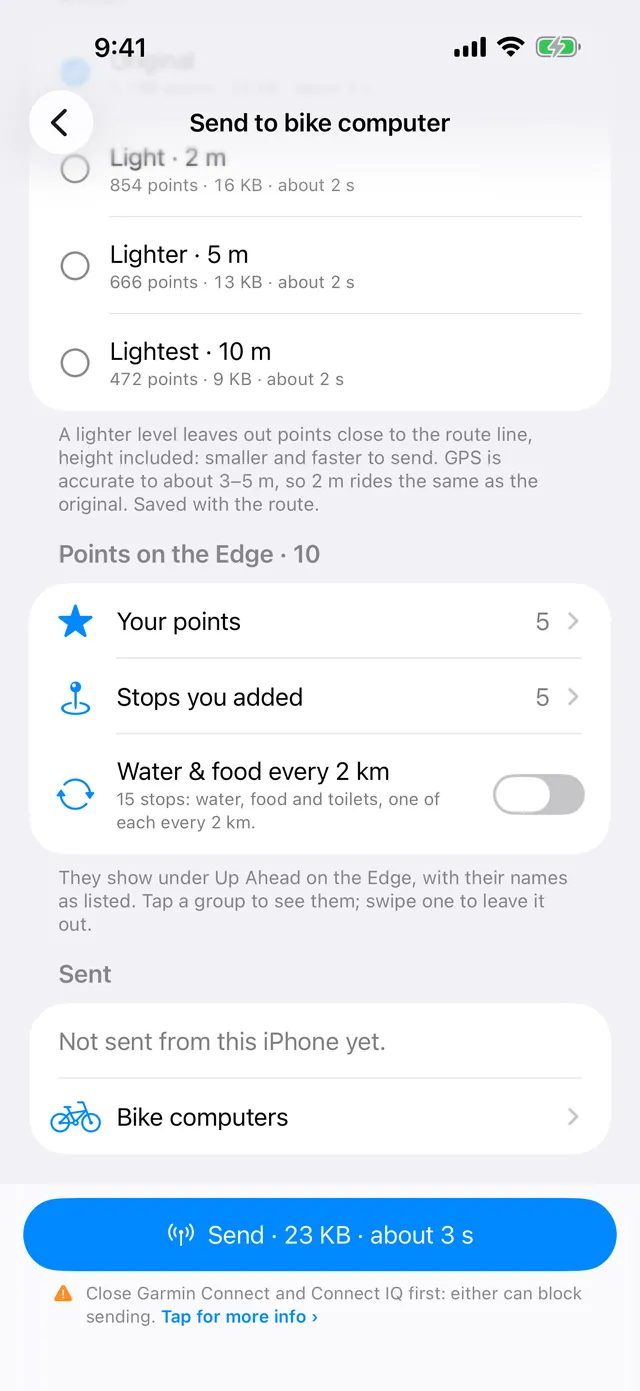
On the Edge, the course is under Navigation → Courses. It’s a normal Garmin course, with turn guidance and ClimbPro. Stops and points you send come along as course points and show under Up Ahead.
In the library there’s a quicker way: swipe right on a route and tap Send. To send several at once, tap Select, pick the routes and tap Send in the bar at the bottom.
Why Garmin Connect has to let go
The Edge lets only one app at a time use its file channel. Garmin Connect and Connect IQ often hold it, especially at home when the phone is online and they’re syncing. While they do, the Edge answers “busy”, and Ridekit shows The Edge is held by a Garmin app. It keeps asking every second and starts sending by itself as soon as the Edge is free.
If it keeps waiting:
- Just turned the Edge on? It syncs with Garmin Connect first: arrows show in the Edge’s status bar at the top, and Connected Features → Phone says Syncing…. Wait until that’s done.
- Quickest fix: on the Edge, open Connected Features → Phone and turn Enable off, then on again. The Edge lets go of the Garmin app, and Ridekit, asking every second, reconnects first and sends.
- If it happens every time at home: in iPhone Settings → General → Background App Refresh, turn it off for Connect and Connect IQ. Otherwise iOS relaunches them in the background and they grab the Edge again within seconds. Then open the app switcher and swipe both away.
Still waiting after a minute? Turn Bluetooth off and on in iPhone Settings and try again.
With Background App Refresh off, Garmin Connect syncs your rides only while it’s open. Open it when you want your ride uploaded, then close it again before the next send.
On a ride with no signal, Garmin’s apps usually stay quiet, so this matters most at home.
If it doesn’t work
- “No Edge is connected”: turn the Edge on and wait until it shows the phone as connected. Opening Garmin Connect once can help it reconnect; close it again before sending. Keep the phone close and tap Retry.
- The Edge says there’s no room: an Edge keeps at most 100 courses. Delete old ones on the Edge and send again. Your routes stay in Ridekit, so you lose nothing (see keep every route on your phone).
- A big route takes long to send: choose a lighter detail level on the same page. A 240 km route with 47,000 points goes from a minute to 6 seconds at 2 m detail, and rides the same. More in Edge slow with big GPX files.
Good to know
- More than one Edge? When several are connected, Ridekit asks which one gets the course. You can name them in Send to bike computer → Bike computers.
- Sending is free. It’s part of the free plan, like import and export.
- Riding with a Wahoo, Hammerhead, Bryton or another bike computer? Choose it in Settings → You ride with. Send to bike computer then leads with Export for your bike computer…: a FIT course or a GPX with stops, opened in your bike computer’s app (ELEMNT, Hammerhead, Bryton Active…) or saved to Files. Your points go along in the file.
- Changed your stops? The route shows Changed · send again until you send it again, so the Edge has the new course points.
The full checklist is also in the app (the ⋯ menu → Sending to the Edge: help) and on the support page. To change routes during a ride, see change your route mid-ride.