
Weather along your ride: the forecast for where you'll be
Set your start time, pace and breaks, and see the forecast for each place on the route at the hour you'll reach it: headwind, rain and darkness by km.
The forecast for your town says 18 °C and sunny. But by two in the afternoon you’ll be up in the hills 60 km away, riding west into a wind that picks up after lunch, and the rain comes in on the way home. A forecast for one place at one hour doesn’t tell you much about a ride that goes somewhere.
Ridekit asks the right one: what will the weather be where you are, when you’re there?
Weather along the ride comes with Plus, or with the Weather add-on for Pro owners. Forecasts are from Apple Weather.
Plan the ride
- Open the route. Under Weather on the ride, tap Plan the ride for the weather….
- Set Start: the day and time you set off.
- Set Speed on the flat. Climbs slow you down by the route’s own elevation, so you don’t have to guess an average for a hilly day.
- Under Breaks, choose A break every (1 to 4 hours, or no breaks) and how long each one is.
- Check Finish and Time on the road, then tap Save.
Ridekit works out when you’ll be at each point of the route and fetches the forecast for those places at those hours. Your usual speed and breaks are in Settings → Ride plans and weather, used for every new plan; each route’s plan can differ.
What you see
On the route page, the plan line shows when you start and finish, your pace and time on the road. Under it:
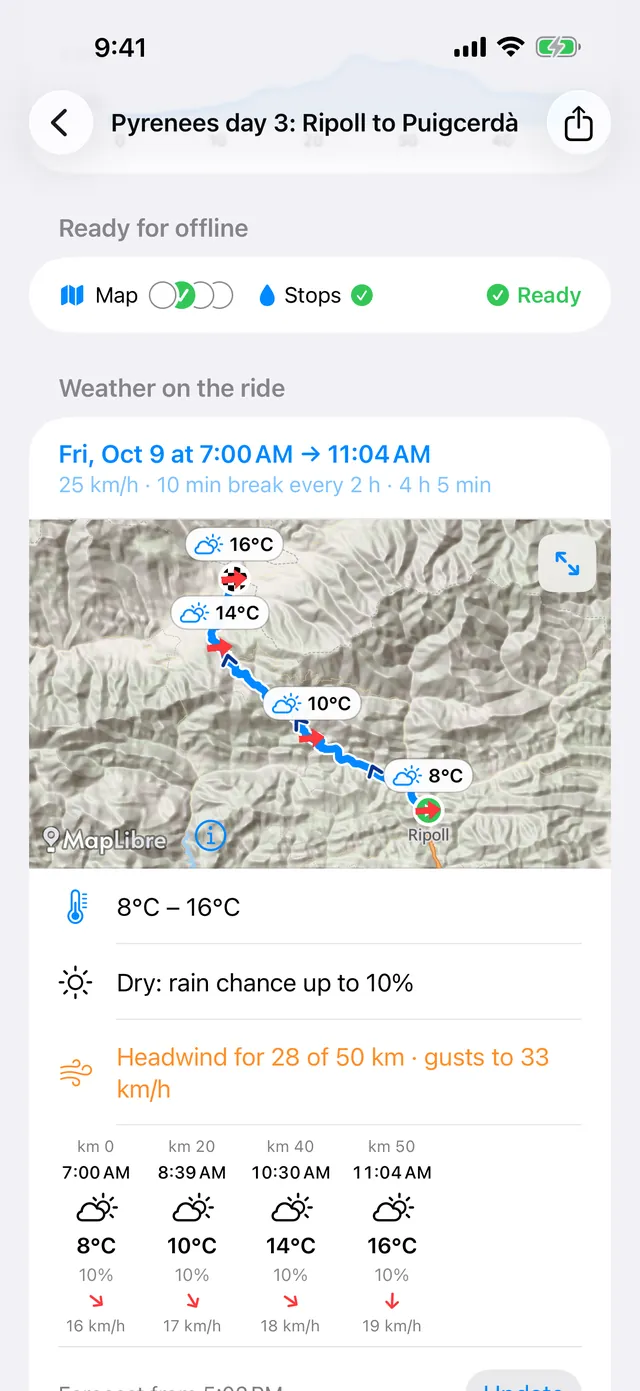
- A map of the route with the forecast at points along it and the wind on each. Tap the corner button for the full-screen weather map.
- A summary, one line each:
- temperature, from the coolest to the warmest you’ll meet
- rain: “Dry: rain chance up to 20%”, or “Rain likely from km 150 (~16:40), up to 70%”
- wind as you meet it: “Headwind for 92 of 210 km”, with the strongest gusts. Tailwind and crosswind get the same line
- darkness: “Dark from km 180 (~19:40)”, or until when it’s dark if you start before sunrise
- A strip you scroll sideways: every place along the route with the km, the time you’ll be there, the sky, temperature, rain chance and the wind as an arrow against your direction of travel, red when it’s in your face and green when it’s behind you.
Forecast points are about every 20 km, roughly an hour’s riding, and further apart on very long routes. The start and the finish are always included.
When to fetch it
Forecasts reach about 9 days ahead. Further out, Ridekit says from which day the forecast will be available. Once your ride’s time has passed, tap the plan to set a new start.
Ridekit fetches the weather only when you ask: Get forecast the first time, then Update. Get ready for offline also fetches it, when the ride is within the forecast’s reach. Then it’s kept for the ride, so the summary and the strip are there with no signal. The line under the strip says when the forecast is from.
Changing the start time, speed or breaks uses the forecast already saved where it can; if the new times fall outside what was fetched, tap Update again. A good habit: plan the ride the evening before, tap Update at breakfast while you still have Wi-Fi, and ride.
Every day of a tour
For a collection of stages, open the collection’s ⋯ menu and tap Plan the stages for weather…. Set each stage’s start time: changing a stage moves the ones after it by the same amount, so a rest day shifts the rest of the trip in one go. Speed and breaks are set once for all stages. Update weather for all stages fetches every day’s forecast at once. See a multi-day tour, stage by stage.
Using it to decide
- Headwind for most of the day? Ride the loop the other way round, or start earlier before the wind picks up. Change the plan and look again.
- Rain from km 150? Move the start an hour earlier and see whether you beat it, or plan a long café stop there.
- Dark from km 180? Lights charged, and look at the stops before that point. With the ride on the Lock Screen, Ridekit can warn you 45 minutes before dark too. See riding into the night.
- Wondering where you’ll sleep? Find a bed uses the route’s ride plan for its arrival times. See find a bed on tour.
Good to know
- Temperature follows your iPhone’s settings, or choose °C or °F in Settings → Temperature.
- Without Plus or the Weather add-on, the route page shows Weather along the ride: tap it to see the plans. Everything else about the route works the same.
- The Weather add-on is yearly or monthly, for Pro owners. Plus includes it, with a 7-day free trial on the yearly plan.
More on the support page.